
Close Menu
    Facebook X (Twitter) Instagram
    Facebook X (Twitter) LinkedIn Instagram YouTube TikTok
    • About
    • Contact
    • Privacy Policy
    • DMCA / Copyright Disclaimer
    • Amazon Disclaimer
    • Terms and Conditions
    VarietyEntertainmentNews.com
    • Home
    • Film
    • Television
    • Box Office
    • Reality TV
    • Music
    • Horror
    • Books
    • Technology
    • Popular Music Videos
    • Cover Story
    • Contact
      • About
    VarietyEntertainmentNews.com
    You are at:Home»Technology»How To Customize Camera Control On Your iPhone
    Technology

    How To Customize Camera Control On Your iPhone

    AdminBy AdminOctober 3, 2026
    Facebook Twitter Pinterest LinkedIn Tumblr Email
    How To Customize Camera Control On Your iPhone


    How To Customize Camera Control On Your iPhone

    Make your iPhone’s camera behave exactly how you want

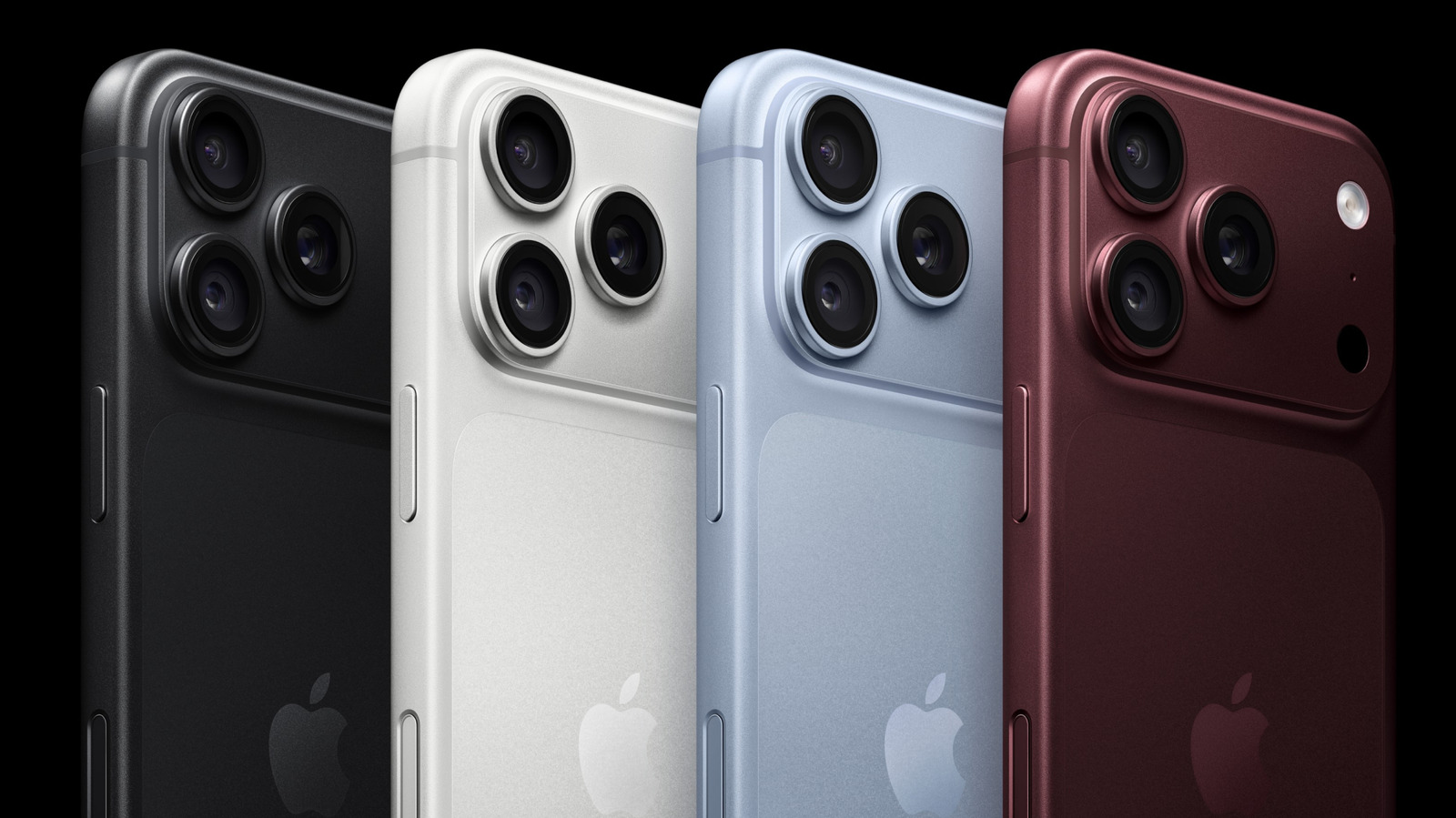
    Are you getting everything you can out of the button at the lower right of your iPhone 16, 17, and 18 series? The button is the phone’s Camera Control, which can be customized to support your mobile photography workflow.

    To clear up any confusion, Camera Control refers to the capacitive button on the right side of your iPhone, which understands a range of gestures, including single- and double-clicks and swipe gestures. You use it to open the camera, take pictures, record videos and work with the advanced photography settings on your iPhone. 

    Perfect for one-handed photography, Camera Control’s default inputs are:

    • Click the button once to launch the Camera.
    • Swipe to use different photography tools such as exposure or zoom while in the app
    • Click again to take the image.
    • Long-press to capture video.
    • Double-click to launch Visual Intelligence, which lets you use the camera to ask Siri questions about your surroundings.

    How to customize the Camera Control button

    You can change the default behaviors in Settings > Camera > Camera Control. This takes you to a pane of many options, including two important sections you should explore first: Launch Camera and Controls, alongside several smaller tweaks.

    For Launch Camera, tap Camera to choose which supported app to open when you press the Camera Control button. Camera is enabled by default, but you’ll find other options if the relevant app is installed. These may include Instagram, which makes your iPhone an instant story creation tool, Code Scanner to scan QR codes or Magnifier, which turns your iPhone into a high-powered digital magnifying glass. You may also see other third-party apps, some of which may be grayed out pending full support.

    The Controls section includes a range of settings you should explore, including Camera Adjustments. When activated, this makes Camera Control even more useful. When your Camera app is active, light presses or swipes on the button will let you explore camera options and adjustments.

    Customize lets you decide what gestures Camera Control supports while in that mode, including support for light presses and swipes. It also lets you enable and disable the six adjustments potentially supported by Camera Control, which include:

    • Zoom
    • Exposure
    • Depth
    • Cameras
    • Styles
    • Tone

    Tap to enable and disable the tick beside the function, or press and hold the burger icon (three horizontal lines) beside each item to move it into your preferred order. In the future, when taking a picture, you’ll be able to swipe the Camera Control to move through those different adjustments in the order you define.

    Exploring additional Camera Control options

    Along with the above-referenced features, Camera Control also allows:

    • Single Click or Double Click: Double Click can be best to avoid accidental camera activations.
    • Require Screen On: When enabled, this toggle-based control will prevent accidental Camera activation when your iPhone is locked.
    • Lock Focus and Exposure: When this is active, Camera Control will maintain focus and exposure so long as you continue to touch it.
    • Launch Visual Intelligence: When active, press and hold the Camera button to open Visual Intelligence, which lets you ask Siri about your surroundings.

    There are several additional customizations available in Settings > Accessibility > Camera Control. Here you can disable the button completely and define the force and speed required to make the button respond to a press, choosing between Default, Slow and Slower.

    I’ve found setting button behaviors to Slow helps stop accidentally opening the Camera when handling my device, and trimming the camera adjustments to Zoom, Exposure and Styles helps me focus on the image, not the controls I don’t frequently use. 

    That’s the point of Camera Control, really — configure it to support your workflow while making it much, much easier to take photos, videos and use Visual Intelligence with one hand.


    Original Source Link

    Share. Facebook Twitter LinkedIn Email Telegram WhatsApp

    Related Posts

    ICE Has Been Dumping Protester Photos Into a Palantir Database

    Soon-To-Be Merged Paramount And Warner Bros. Will Be Known As Skydance Going Forward

    Whatever AI Safety Is, It’s Not This

    Audible Thinks You Want To Have An AI-Generated Conversation With Dracula’s Beleaguered Servant

    The White House Is Starting to Panic Over the Midterms

    Tinder Now Offers Group Hangouts As An Alternative To One-On-One Dates

    Recent Posts
    October 3, 2026

    Anna Pigeon Season 1 Episode 9 Review: Yep, All the Pigeon Sisters (and Jesse) Feels!

    October 3, 2026

    Behemoth Review: Pedro Pascal & Andor Creator’s Movie Is Unsuccessful

    October 3, 2026

    Watch Placebo debut ‘Helen Keller’ and dust off rarities and deep cuts on 30th anniversary tour

    October 3, 2026

    ICE Has Been Dumping Protester Photos Into a Palantir Database

    October 3, 2026

    LIZARDS TAKE OVER! | Kirkus Reviews

    October 3, 2026

    Indie Films Opening Oct. 2: ‘NAZA’ Starts U.S. Rollout

    October 3, 2026

    Brooks Nader’s Bikini Is So Tiny, It Puts Her Figure on Full Display

    Categories
    • Books (2,377)
    • Box Office (1,768)
    • Cover Story (44)
    • Featured (51)
    • Film (2,411)
    • Horror (2,397)
    • Music (2,466)
    • Politics (29)
    • Popular Music Videos (1,819)
    • Reality TV (1,845)
    • Technology (2,399)
    • Television (2,454)
    • Uncategorized (2)
    Archives
    Useful Links
    • About
    • Contact
    • Privacy Policy
    • DMCA / Copyright Disclaimer
    • Amazon Disclaimer
    • Terms and Conditions
    Categories
    • Books (2,377)
    • Box Office (1,768)
    • Cover Story (44)
    • Featured (51)
    • Film (2,411)
    • Horror (2,397)
    • Music (2,466)
    • Politics (29)
    • Popular Music Videos (1,819)
    • Reality TV (1,845)
    • Technology (2,399)
    • Television (2,454)
    • Uncategorized (2)
    Recent Posts
    • Horror Highlights: THE DEADLY SPAWN 4K UHD, ACCESS:HORROR FILM FESTIVAL, ONE EYE OPEN Trailer
    • Bill Maher Eviscerates ‘Generation TMZ’ Amid ‘Surveillance State’
    • The Weight review – gold in them hills
    • Jimmy Barnes Pays Tribute to Angry Anderson With Rose Tattoo Cover
    • How To Customize Camera Control On Your iPhone
    • THE FOOD BUSINESS BLUEPRINT | Kirkus Reviews
    • ‘Verity’ To Seduce $55M+ Worldwide Opening As Box Office Braces For ‘Digger’ Impact – Global Preview
    • Elizabeth Hurley Flaunts Her Curves In Plunging Nina Morris Suit
    © 2026 Variety Entertainment News. All rights reserved. All articles, images, product names, logos, and brands are property of their respective owners. All company, product and service names used in this website are for identification purposes only. Use of these names, logos, and brands does not imply endorsement unless specified. By using this site, you agree to the Terms & Conditions and Privacy Policy.

    Type above and press Enter to search. Press Esc to cancel.

    We use cookies on our website to give you the most relevant experience by remembering your preferences and repeat visits. By clicking “Accept All”, you consent to the use of ALL the cookies. However, you may visit "Cookie Settings" to provide a controlled consent.
    Cookie SettingsAccept All
    Manage consent

    Privacy Overview

    This website uses cookies to improve your experience while you navigate through the website. Out of these, the cookies that are categorized as necessary are stored on your browser as they are essential for the working of basic functionalities of the website. We also use third-party cookies that help us analyze and understand how you use this website. These cookies will be stored in your browser only with your consent. You also have the option to opt-out of these cookies. But opting out of some of these cookies may affect your browsing experience.
    Necessary
    Always Enabled
    Necessary cookies are absolutely essential for the website to function properly. These cookies ensure basic functionalities and security features of the website, anonymously.
    CookieDurationDescription
    cookielawinfo-checkbox-analytics11 monthsThis cookie is set by GDPR Cookie Consent plugin. The cookie is used to store the user consent for the cookies in the category "Analytics".
    cookielawinfo-checkbox-functional11 monthsThe cookie is set by GDPR cookie consent to record the user consent for the cookies in the category "Functional".
    cookielawinfo-checkbox-necessary11 monthsThis cookie is set by GDPR Cookie Consent plugin. The cookies is used to store the user consent for the cookies in the category "Necessary".
    cookielawinfo-checkbox-others11 monthsThis cookie is set by GDPR Cookie Consent plugin. The cookie is used to store the user consent for the cookies in the category "Other.
    cookielawinfo-checkbox-performance11 monthsThis cookie is set by GDPR Cookie Consent plugin. The cookie is used to store the user consent for the cookies in the category "Performance".
    viewed_cookie_policy11 monthsThe cookie is set by the GDPR Cookie Consent plugin and is used to store whether or not user has consented to the use of cookies. It does not store any personal data.
    Functional
    Functional cookies help to perform certain functionalities like sharing the content of the website on social media platforms, collect feedbacks, and other third-party features.
    Performance
    Performance cookies are used to understand and analyze the key performance indexes of the website which helps in delivering a better user experience for the visitors.
    Analytics
    Analytical cookies are used to understand how visitors interact with the website. These cookies help provide information on metrics the number of visitors, bounce rate, traffic source, etc.
    Advertisement
    Advertisement cookies are used to provide visitors with relevant ads and marketing campaigns. These cookies track visitors across websites and collect information to provide customized ads.
    Others
    Other uncategorized cookies are those that are being analyzed and have not been classified into a category as yet.
    SAVE & ACCEPT